Showing posts with label Di_Halim. Show all posts
Showing posts with label Di_Halim. Show all posts
Monday, 20 April 2015
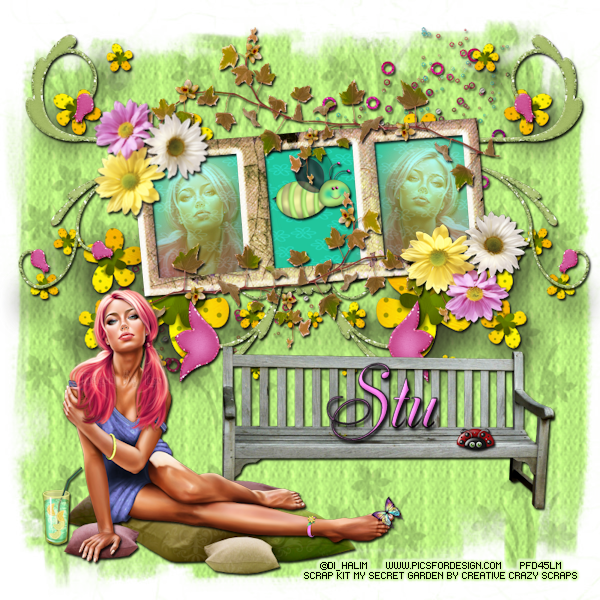
PTU My Secret Garden
This tutorial was written by me on April 20, 2015.
It was made out of my own creation and any similarity is purely
coincidental.
I used PSP X6 but any version would work.
Artist: Di_Halim
You can find this tube at Pics For Design HERE
This is an exclusive tube and was gifted to me.
You will need to be a member of the Exclusive Club to buy it.
Do not use this tube
unless you have a license.
Scrap Kit: My Secret Garden by Creative Crazy Scraps
You can find this kit at Creative Crazy Scraps Store HERE
You can find this kit at Creative Crazy Scraps Store HERE
Mask: WSL 3 HERE
Let’s start with the mask layer:
New Raster – 800 X 800.
Open Paper 4. Open mask (WSL 3) and minimize.
SELECTIONS – SELECT ALL – Copy and paste Paper 18 into selection.
Go to LAYERS – NEW MASK LAYER – FROM IMAGE – SOURCE LUMINANCE - CHECKED – from menu, find WSL 3 – OK.
Duplicate and merge down.
(see tag for placement)
Let’s start with the mask layer:
New Raster – 800 X 800.
Open Paper 4. Open mask (WSL 3) and minimize.
SELECTIONS – SELECT ALL – Copy and paste Paper 18 into selection.
Go to LAYERS – NEW MASK LAYER – FROM IMAGE – SOURCE LUMINANCE - CHECKED – from menu, find WSL 3 – OK.
Duplicate and merge down.
(see tag for placement)
Element 17 - C/P and move to upper right side of tag. Make sure this layer is UNDER the frame layer(s). Duplicate and mirror.
I've used
V & H 2
Opacity 70
Blur 7
Color Black
Now you can add name
and © information. Save as .png and re-size if you wish.
I re-size before I add
name and © info and then save.
Let me know what you think of
this tutorial.
Wednesday, 18 March 2015

PTU Cupid Girl
This tutorial was written by me on March 18, 2015.
It was made out of my own creation and any similarity is purely
coincidental.
I used PSP X6 but any version would work.
Artist: Di_Halim
You can find this tube at Pics For Designs HERE
I got this tube as a gift, but you can find it in the Exclusive Club, though you must be a member of this club to get this and all other exclusive tubes.
Do not use this tube
unless you have a license.
Mask: WSL 3 HERE
Let’s start with the mask layer:
New Raster – 800 X 800.
Open Paper 1. Open mask (WSL 3) and minimize.
SELECTIONS – SELECT ALL – Copy and paste Paper 3 into selection.
Go to LAYERS – NEW MASK LAYER – FROM IMAGE – SOURCE LUMINANCE - CHECKED – from menu, find WSL 3 – OK.
Duplicate and merge down.
(see tag for placement)
Let’s start with the mask layer:
New Raster – 800 X 800.
Open Paper 1. Open mask (WSL 3) and minimize.
SELECTIONS – SELECT ALL – Copy and paste Paper 3 into selection.
Go to LAYERS – NEW MASK LAYER – FROM IMAGE – SOURCE LUMINANCE - CHECKED – from menu, find WSL 3 – OK.
Duplicate and merge down.
(see tag for placement)
Element 91 - C/P and re-size 80%. Move to upper right side of frame. Make sure this layer, and all other layer(s), are OVER the frame layer(s). Duplicate and mirror and flip.
I've used
V & H 2
Opacity 70
Blur 7
Color Black
Now you can add name
and © information. Save as .png and re-size if you wish.
I re-size before I add
name and © info and then save.
Let me know what you think of
this tutorial.
Monday, 26 January 2015

PTU Winter Bird
This tutorial was written by me on January 25, 2015.
It was made out of my own creation and any similarity is purely
coincidental.
I used PSP X6 but any version would work.
Artist: Di Halim
I got this tube as a gift from Pics For Design HERE
You can find this tube, if you join the Exclusive Club, but any tube will do.
Do not use this tube
unless you have a license.
Mask: WSL 84 HERE
Let’s start with the mask layer:
New Raster – 800 X 800.
Open Paper 14. Open mask (WSL 84) and minimize.
SELECTIONS – SELECT ALL – Copy and paste Paper 146 into selection.
Go to LAYERS – NEW MASK LAYER – FROM IMAGE – SOURCE LUMINANCE - CHECKED – from menu, find WSL 84 – OK.
Duplicate and merge down. Re-size 115%.
(see tag for placement)
Let’s start with the mask layer:
New Raster – 800 X 800.
Open Paper 14. Open mask (WSL 84) and minimize.
SELECTIONS – SELECT ALL – Copy and paste Paper 146 into selection.
Go to LAYERS – NEW MASK LAYER – FROM IMAGE – SOURCE LUMINANCE - CHECKED – from menu, find WSL 84 – OK.
Duplicate and merge down. Re-size 115%.
(see tag for placement)

Element 21 - C/P and re-size 95%. Move to far left side of tag. Duplicate and mirror. Move original element up just a little on tag.
Element 16 - C/P and move to bottom right corner of tag.
Add drop shadow to layers of your
choosing.
I've used
V & H 2
Opacity 70
Blur 7
Color Black
Now you can add name
and © information. Save as .png and re-size if you wish.
I re-size before I add
name and © info and then save.
Let me know what you think of
this tutorial.
Saturday, 10 January 2015

PTU Winter Bird
This tutorial was written by me on January 10, 2015.
It was made out of my own creation and any similarity is purely
coincidental.
I used PSP X6 but any version would work.
Artist: Di Halim
I got this tube as a gift from Pics For Design HERE
You can find this tube, if you join the Exclusive Club, but any tube will do.
Do not use this tube
unless you have a license.
Scrap Kit: You And Me by Rieneke Designs & Joy Designs
You can find this kit at Twilight Scraps HERE
You can find this kit at Twilight Scraps HERE
Mask: WSL 84 HERE
Let’s start with the mask layer:
New Raster – 800 X 800.
Open Paper 4. Open mask (WSL 84) and minimize.
SELECTIONS – SELECT ALL – Copy and paste Paper 4 into selection.
Go to LAYERS – NEW MASK LAYER – FROM IMAGE – SOURCE LUMINANCE - CHECKED – from menu, find WSL 84 – OK.
Duplicate and merge down. Re-size 115%. I also used a drop shadow on this layer.
(see tag for placement)
Let’s start with the mask layer:
New Raster – 800 X 800.
Open Paper 4. Open mask (WSL 84) and minimize.
SELECTIONS – SELECT ALL – Copy and paste Paper 4 into selection.
Go to LAYERS – NEW MASK LAYER – FROM IMAGE – SOURCE LUMINANCE - CHECKED – from menu, find WSL 84 – OK.
Duplicate and merge down. Re-size 115%. I also used a drop shadow on this layer.
(see tag for placement)
Now onto some elements:
Element 3 - C/P and re-size 70%. Move to bottom right side of frame. Make sure this layer, and all other layer(s), are OVER the frame layer(s). Duplicate and mirror.
Element 53 - C/P and re-size 80%. Move to top left side of frame.
Element 43 - C/P and re-size 50%. Move to right side of frame.
Add drop shadow to layers of your
choosing.
I've used
V & H 2
Opacity 70
Blur 7
Color Black
Now you can add name
and © information. Save as .png and re-size if you wish.
I re-size before I add
name and © info and then save.
Let me know what you think of
this tutorial.
Sunday, 30 November 2014


Thursday, 27 June 2013

*Right Click - Open Link In New Tab - On All Images To View Full Size*
PTU Summer Lolita
This tutorial was written by me on June 26, 2013.
It was made out of my own creation and any similarity is purely
coincidental.
I used PSPx2 but any version would work.
Artist: Di_Halim
This is an exclusive
pre-paid and was gifted to me.
You can find his tubes
at Pics For Design HERE
Do not use this tube
unless you have a license.
Scrap Kit: Summer Lolita by Amy
Marie’s Kits
You can find her kits at her store
HERE
Mask: Masks By Lise 5 HERE
Font: Fansi Pensle Font HERE
Here goes:
The mask layer.
Open PP8. Hold down SHIFT button
and tap you “D” key. Close Original PP8.
Choose mask. I am using Masks by
Lise 5
Go to LAYERS – NEW MASK LAYER – FROM IMAGE – SOURCE LUMINANCE CHECKED –
CHOOSE Masks by Lise 5 FROM DROP DOWN – OK.
Duplicate and merge down.
Some Frame Elements:
Element 84 – C/P and move upper middle
of tag. Grab magic wand. Click inside of frame.
SELECTIONS – MODIFY – EXPAND 4 PIXELS
NEW RASTER LAYER – PASTE INTO SELECTION – SELECTIONS – SELECT NONE.
I colorized the frame. If you
want to, you can use the same settings as me.
I used the following:
(see tag for placement)

More Elements:
Element 20 – C/P and leave in middle of tag over frame layer.
(see tag for placement)
Element 82 – C/P and move a little bit down on tag.
(see tag for placement)
Element 14 – C/P and move to lower left side of tag. Duplicate and mirror and merge down. Duplicate again and flip. Bring duplicate back down to fit with
original.
(see tag for placement)
Element 19 – C/P and re-size 70%.
Mirror and move to lower left side of tag.
(see tag for placement)
Element 39 – C/P and re-size 20%.
Move to lower middle of tag over Element 82.
(see tag for placement)
Element 13 - C/P and move to upper
left side of tag. Duplicate and mirror.
(see tag for placement)
Element 92 – C/P and re-size 40%.
Move to bottom left side of tag.
(see tag for placement)
Element 77 – C/P and re-size 30%.
Move lower left corner of tag.
(see tag for placement)
Element 93 – C/P and re-size 45%.
Move to lower left side of tag over rock.
(see tag for placement)
Element 78 – C/P and re-size 25%.
Move to the lower left side of tag over hat.
(see tag for placement)
Element 81 – C/P and re-size 30%.
Move to lower right side of tag over basket.
(see tag for placement)
Element 64 – C/P and move to upper left side of tag.
(see tag for placement)
Element 59 – C/P and re-size 80%.
Move to upper middle of frame.
(see tag for placement)
Element 15 – C/P and re-size 20%.
Move to upper left side of frame.
(see tag for placement)
Element 58 – C/P and re-size 20%.
Mirror and move to right side of Element 59.
(see tag for placement)
Now the tube layer:
If you are using the same tube as
me,
Open tube. Choose version you
like.
C/P tube and resize 50% and move to lower middle of tag
(see tag for placement)
Add drop shadow to layers of your choosing.
I used
V & H 2
Opacity 70
Blur 7
Color Black
Now you can add name and © information. Save as .png
and re-size if you wish.
I re-size before I save and add name and © info.
Let me know what you think of this tutorial.
Subscribe to:
Posts
(Atom)